How to Enable HEIC Image Support in Ubuntu 26.04 LTS
Introduction
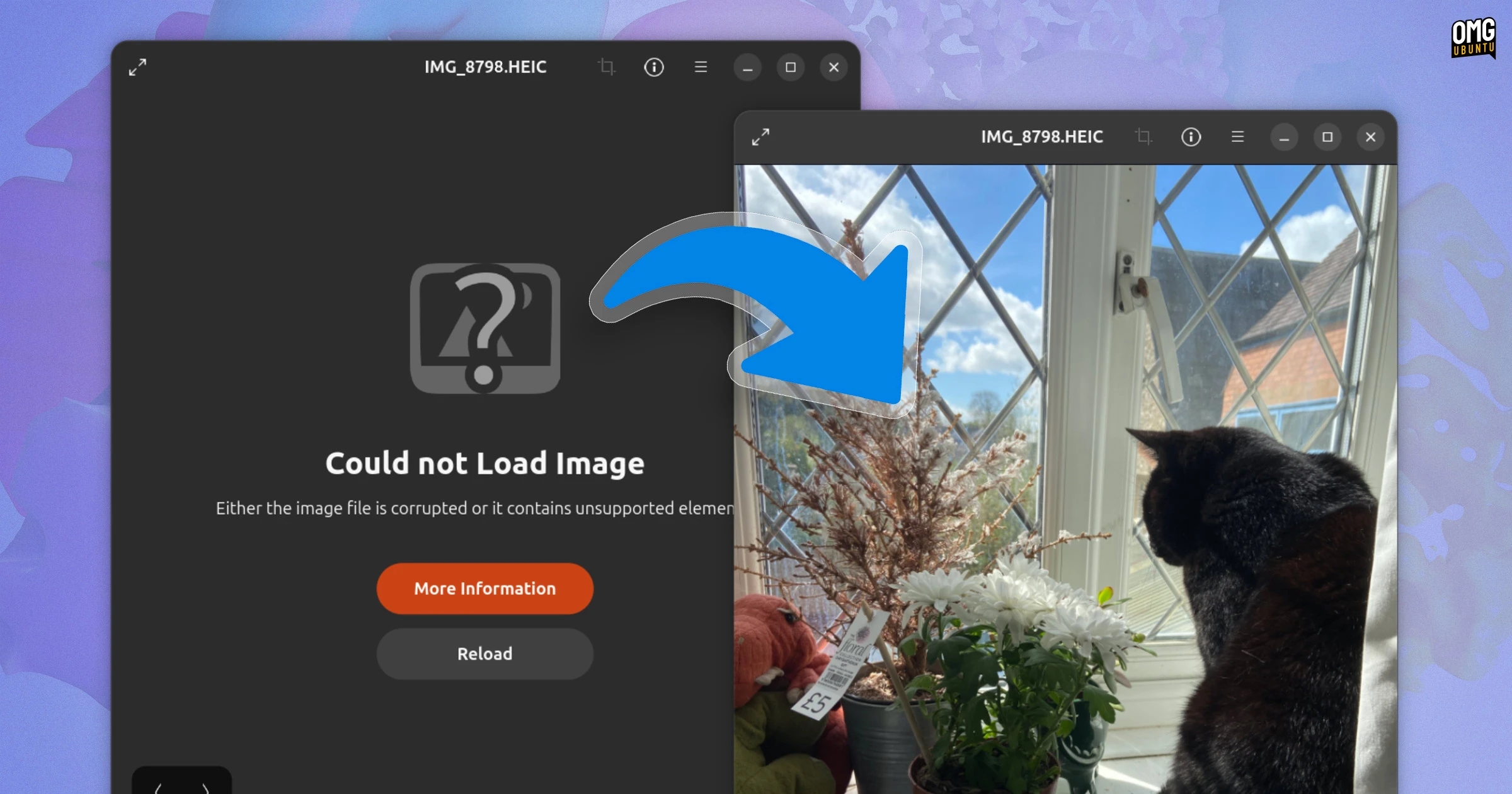
If you've tried opening HEIC photos from your iPhone or Android device on Ubuntu 26.04 LTS and saw a "Could not load image" error in the default Image Viewer, you're not alone. This isn't a bug—it's an intentional removal of support that started with this LTS release. HEIC files (High Efficiency Image Container) use the H.265/HEVC compression standard, which isn't included out of the box. However, restoring this functionality is straightforward. In this guide, you'll learn exactly how to install the necessary decoder library and get your HEIC images loading again—no advanced skills required. We'll walk you through each step, from identifying the problem to verifying the fix.

What You Need
Before you start, make sure you have the following:
- A computer running Ubuntu 26.04 LTS (64-bit) with an active internet connection.
- Access to a terminal (you can open one with Ctrl+Alt+T).
- “sudo” privileges (your user account should be able to run administrative commands).
- Optionally, a HEIC image file from your smartphone to test the fix.
All commands in this guide are safe and won't affect your system configuration beyond adding the HEIC decoder.
Step-by-Step Instructions
Step 1: Confirm the Problem
First, verify that HEIC images indeed fail to open. Locate any .heic file (e.g., from your phone) and double-click it in the default Files app (Nautilus). If you see the error “Could not load image” or a blank preview, you've hit the missing library issue. Alternatively, run this command in the terminal to check if the required package is installed:
dpkg -l | grep heifIf no packages appear, support is indeed missing.
Step 2: Open a Terminal
Press Ctrl+Alt+T on your keyboard to launch a terminal window. You'll be greeted by a command-line prompt. All subsequent steps will be performed here.
Step 3: Update the Package List
Before installing anything, it's wise to refresh your local package database to ensure you get the latest version:
sudo apt updateEnter your user password when prompted. Wait for the update to complete.
Step 4: Install the HEIC Decoder Library
The critical package is heif-gdk-pixbuf, which provides the necessary decoder for HEIC images. Run this command:
sudo apt install heif-gdk-pixbufThis package depends on libheif1 and other related libraries, which will be installed automatically. Confirm the installation by typing Y when prompted. The download is small (a few megabytes) and should complete quickly.
Step 5: Reload the Image Viewer (or Log Off/On)
For the change to take effect, you need to restart any applications that cache thumbnail generators. The easiest way is to log out of your session and log back in. Alternatively, you can kill the Nautilus file manager:
nautilus -qThen restart it from the terminal or by opening any folder. The Image Viewer (Eye of GNOME) will also need to be relaunched if it was open.
Step 6: Test the Fix
Now try opening that HEIC file again. Double-click it in Files, and it should display correctly. You can also run a quick command to verify the decoder works:
gdk-pixbuf-query-loaders | grep -i heifIf you see a line containing “heif” (e.g., ImageLoader=heif), the installation was successful.
If images still don't load, try restarting your computer completely. In rare cases, you might also need to install the libheif-examples package for additional utilities:
sudo apt install libheif-examplesThis isn't strictly necessary for viewing, but it can help with debugging.
Troubleshooting Common Issues
- Package not found: Ubuntu 26.04's default repositories might lag. If
heif-gdk-pixbufisn't available, tryheif-gdk-pixbuforlibheif1. Runapt search heifto find the exact package name. - Permission denied: Ensure you use
sudofor installation commands. If you don't have sudo privileges, contact your system administrator. - Still not working: Clear Nautilus thumbnail cache with
rm -rf ~/.cache/thumbnails/*and try again.
Tips and Final Thoughts
Here are a few extra pointers to make your experience with HEIC images on Ubuntu smoother:
- Keep your system updated: Future updates might improve HEIC support. Run
sudo apt update && sudo apt upgraderegularly. - Alternative image viewers: If the default Image Viewer still behaves oddly, consider installing
gthumborqiv, which also use GDK pixbuf loaders and benefit from the same fix. - Batch conversion: If you prefer to avoid HEIC entirely, use
heif-convert(fromlibheif-examples) to convert files to JPEG or PNG. Example:heif-convert image.heic image.jpg. - Why this happened: Ubuntu 26.04 LTS intentionally removed the HEIC decoder due to licensing concerns related to H.265/HEVC. By installing
heif-gdk-pixbuf, you're adding a free software implementation (libheif) that works around this. - Share this guide: Many users face this issue. Feel free to point them to this step-by-step solution.
With these steps, your Ubuntu 26.04 LTS system now fully handles HEIC images, just like previous releases. Enjoy seamless photo management from your smartphone!
Related Articles
- React Native 0.84 Goes Live: Hermes V1 Engine Now Default, Promises Major Performance Gains
- Apple's Next Big AI Move: Visual Intelligence in iOS 27 Camera App, Tim Cook Reflects on Career, and iPhone Battery Drain Woes
- Resolving HEIC Image Display Issues in Ubuntu 26.04 LTS: A Step-by-Step Guide
- Swift Project Forms Windows Workgroup to Accelerate Native App Development
- Aurzen Roku TV Smart Projector Deal: Your Top Questions Answered
- Unlocking HEIC Photos in Ubuntu 26.04: Your Complete Q&A Guide
- 10 Critical Facts About the Google Family Link Call Blocking Bug
- Instagram Unveils Instants: A New Ephemeral Photo App and In-App Feature